Next: Introduction [Contents][Index]
This document describes Verum-Dezyne version 2.18.3.
Next: Installation, Previous: Top, Up: Top [Contents][Index]
While the component-based approach of Dezyne (see Dezyne Reference Manual) helps to create an understandable, modular system architecture, working on a software system is not always easy. When the problem at hand gets more difficult, then all help, e.g., help from tooling, is welcome.
Working with the Dezyne Language, we think, is best done using the Verum-Dezyne IDE.
Verum-Dezyne provides two graphical views: a structural overview (see System View) that helps navigating the system architecture, and a dynamic view (see Trace View) that helps understanding your system’s behavior.
The Verum-Dezyne IDE consists of these elements:
dzn command-line tools,
Next: Getting Started, Previous: Introduction, Up: Top [Contents][Index]
In order to install Verum-Dezyne on your system, you can use a binary installation that we prepared especially for you.
Note: The Verum-Dezyne IDE is a commercial product by verum.com. You should make sure to contact (or having contacted) Verum for a license.
| • Binary Installation | Getting Verum-Dezyne running in no time! |
Up: Installation [Contents][Index]
Note: The Verum-Dezyne IDE is a commercial product by verum.com. You should make sure to contact (or having contacted) Verum for a license.
This section describes how to install Verum-Dezyne on an arbitrary system from a self-contained tarball providing binaries for Verum-Dezyne and for all its dependencies. This is often quicker than installing from source, which is described in the next sections. The only requirement is to have GNU tar and gzip, or 7zip for the Microsoft Windows inclined.
Installing goes along these lines:
Make sure to download the associated .sig file and to verify the authenticity of the tarball against it, do something like:
$ wget https://download.verum.com/download/verum-dezyne/\ verum-dezyne-2.18.3-x86_64-linux.tar.gz.sig $ gpg --verify verum-dezyne-2.18.3-x86_64-linux.tar.gz.sig
If that command fails because you do not have the required public key, then run this command to import it:
$ wget https://savannah.gnu.org/people/viewgpg.php?user_id=4348 \
      -qO - | gpg --import -
and rerun the gpg --verify command.
Take note that a warning like “This key is not certified with a trusted signature!” is normal.
Now, you can unpack the tarball; do something like:
$ tar --warning=no-timestamp -xf /path/to/\
verum-dezyne-2.18.3-x86_64-linux.tar.gz
Then try:
$ cd dezyne-2.18.3
$ ./ide --help
$ ./dzn --help
dzn command available from other locations or to
other users on the machine, for instance with:
$ ln -s $PWD/dzn ~/bin/dzn
$ ln -s $PWD/ide ~/bin/ide
or
# ln -s $PWD/dzn /usr/local/bin/dzn
# ln -s $PWD/ide /usr/local/bin/ide
dzn-env
prefix-command1
available:
$ ln -s $PWD/dzn-env ~/bin/dzn-env
or
# ln -s $PWD/dzn-env /usr/local/bin/dzn-env
$ ide hello
$ dzn-env info dezyne
and get busy Dezyne’ing, see Getting Started!
Installing goes along these lines:
after which you can extract the archive by using 7zip https://www.7-zip.org. Please do not use the built-in Windows archive extraction tool: It does not honor the time stamps of the files in the archive and thus produces a faulty installation.
If your system comes with a virus scanner, consider creating an exception for dezyne-2.18.3.
…
and get busy Dezyne’ing, see Getting Started!
Next: Using Verum-Dezyne, Previous: Installation, Up: Top [Contents][Index]
The dezyne core functionality delivers tool support for the dezyne language in parsing, verification and code generation. Results are delivered in text format only.
In order to gain more insight graphical feedback is delivered in the following cases:
All views are initiated by the user from the command-line, and are presented in a web page.
| • Getting started Set-up | ||
| • Getting started System View | ||
| • Getting started State View | ||
| • Getting started Sequence view |
Next: Getting started System View, Up: Getting Started [Contents][Index]
In order to use the web views a dedicated ide
daemon(see Invoking ide daemon) needs to be running. This daemon
mediates between the command line and the web pages, and also stores the
traces that are presented and modified in the sequence view.
The ide daemon is started by running ide hello
(see Invoking ide hello) and stopped with ide bye
(see Invoking ide bye).
Once the daemon is running, views can be initiated.
Next: Getting started State View, Previous: Getting started Set-up, Up: Getting Started [Contents][Index]
The system view is started from the command-line with the ide
system (see Invoking ide system) command:
ide system examples/Camera.dzn
If all is well, a browser will be presented showing the system view for
the Camera system. A browser can also be started by running ide
browse (see Invoking ide browse):
ide browse
It can also be viewed in a regular web browser that supports running non-free javascript by visiting http://localhost:3000/system.
Next: Getting started Sequence view, Previous: Getting started System View, Up: Getting Started [Contents][Index]
The state view is started from the command-line with the ide
state (see Invoking ide state) command:
ide state examples/Camera.dzn
If all is well, a browser will be presented showing the state view for
the Camera system. A browser can also be started by running ide
browse (see Invoking ide browse):
ide browse state
It can also be viewed in a regular web browser that supports running non-free javascript by visiting http://localhost:3000/state.
Previous: Getting started State View, Up: Getting Started [Contents][Index]
The sequence view can be initiated from the command-line uing the
dzn simulate(see Invoking ide simulate) command:
ide simulate -m Driver examples/Camera.dzn
If all is well, a browser will be presented showing an empty trace view
for the Driver component. A browser can also be started by running
ide browse trace (see Invoking ide browse):
ide browse trace
It can also be viewed by visiting http://localhost:3000/trace.
Optional input for the sequence view is a trace, which (among others)
can be the result of a verification error. The ide verify
(see Invoking ide verify) command supports this scenario. As first
step verification is done. In case an error is found, the error trace
is used as input for simulation, and presented in the web views:
ide verify examples/compliance_provides_bool.dzn
results in:
verify: ibool: check: deadlock: ok verify: ibool: check: livelock: ok verify: compliance_provides_bool: check: deterministic: ok verify: compliance_provides_bool: check: illegal: ok verify: compliance_provides_bool: check: deadlock: ok verify: compliance_provides_bool: check: livelock: ok verify: compliance_provides_bool: check: compliance: fail verification error
Next: Dezyne Views, Previous: Getting Started, Up: Top [Contents][Index]
While the letter I in IDE stands for integrated, the level
and type of integration that makes a person productive is a matter of
taste, habit and experience.
The Verum-Dezyne IDE offers these levels towards integration (or if you like, desintegration):
FullIntegrated: Editor, Browser, Console, Window Management, Interpreter
An example is GNU Emacs with exwm
External Browser, External Window MangementIntegrated: Editor, Console, Interpreter
Examples are Electron-derivatives, emacs, vim
External, Console, Browser, Window Management and InterpreterIntegrated: -
Examples are nano, vi.
| • Example IDEs | ||
| • Verum-Dezyne View Commands | ||
| • Component Simulator |
Next: Verum-Dezyne View Commands, Up: Using Verum-Dezyne [Contents][Index]
Dezyne Language-Awareness is provided through the ide.
Currently, it provides the following
Syntax coloringNavigationGo to definition, Show usage
Symbol completionLookup Documentation| • An Electron-based Verum-Dezyne IDE | ||
| • A GNU Emacs-based Verum-Dezyne IDE |
Next: A GNU Emacs-based Verum-Dezyne IDE, Up: Example IDEs [Contents][Index]
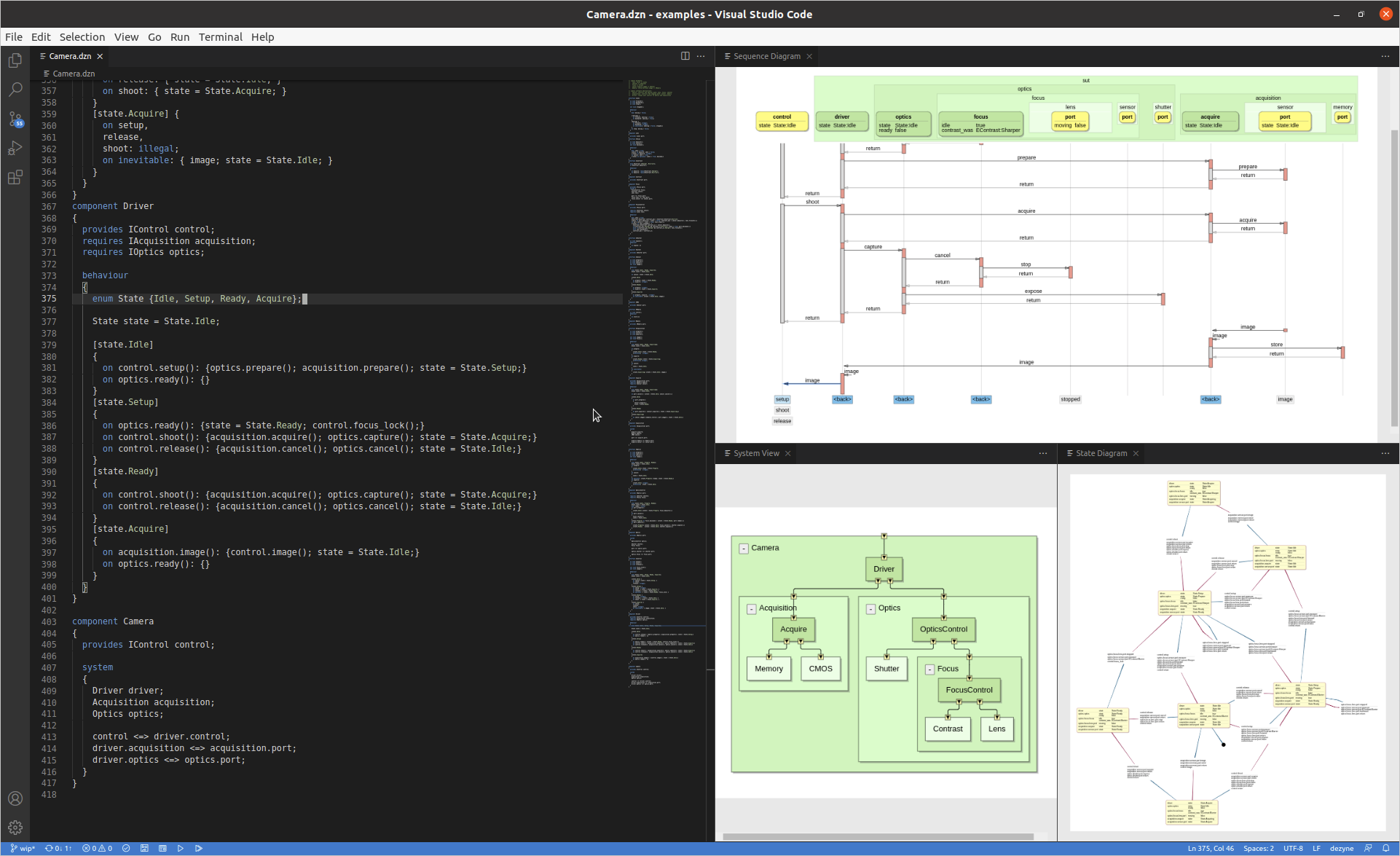
There are several Electron-based programmer’s editors: Atom, VSCodium and Microsoft Visual Studio Code.
ide lsp provides Language-Awareness to the editor through
the Language Server Protocol (LSP)(https://langserver.org/).
We provide a new VSCodium/Visual Studio Code extension dzn-lsp
that adds rudimentary syntax highlighting, language recogniziton for
*.dzn files and LSP -apabilities for this Dezyne mode in VSCode
dzn-lsp. dzn-lps can be downloaded here
https://download.verum.com/download/verum-dezyne/dzn-lsp-1.2.2.vsix.
In the extension settings for dzn-lsp you can configure where
the ide is located e.g.,
C:/dezyne-2.18.3 or
/home/user/bin/dezyne-2.18.3; see field
Dzn>Ide:Path. If this is not specified, the PATH environment
variable of your system is used.
Furthermore, all commands for stopping an already running dzn daemon,
starting a dzn daemon, starting the Dezyne LSP server, and
preforming a verification can be configured. If your project needs
include directories in order to resolve any imports, you can
append -I dir… to the command for starting
the LSP server such that the LSP server can resolve import locations.
The extension dzn-lsp also provides the
goto-click functionality: when the user clicks on an
element in one of the webviews, the editor jumps to the location in
the code relating to that element. If needed, a new editor tab
is opened for showing the corresponding file.
The extension dzn-lsp also starts the dzn daemon. The
commmand for starting the daemon is executed in a dedicated terminal
with the name dzn-daemon. By selecting that terminal you
can see the output of the running dzn daemon.
The extension also offers a verify command. When the
active editor contains a dzn file, the verify command can
be executed by opening the Command Palette:
View -> Command Palette... or Ctrl+Shift+P
and typing verify and then selecting "Dzn: Verify".
Inside a dedicated terminal with the name dzn-verify, the
verification command is executed for verifying the dzn file of the
active editor.
The auto starting of the daemon and the goto-click functionality can be disabled using the correspondings settings of the extension.
Previous: An Electron-based Verum-Dezyne IDE, Up: Example IDEs [Contents][Index]
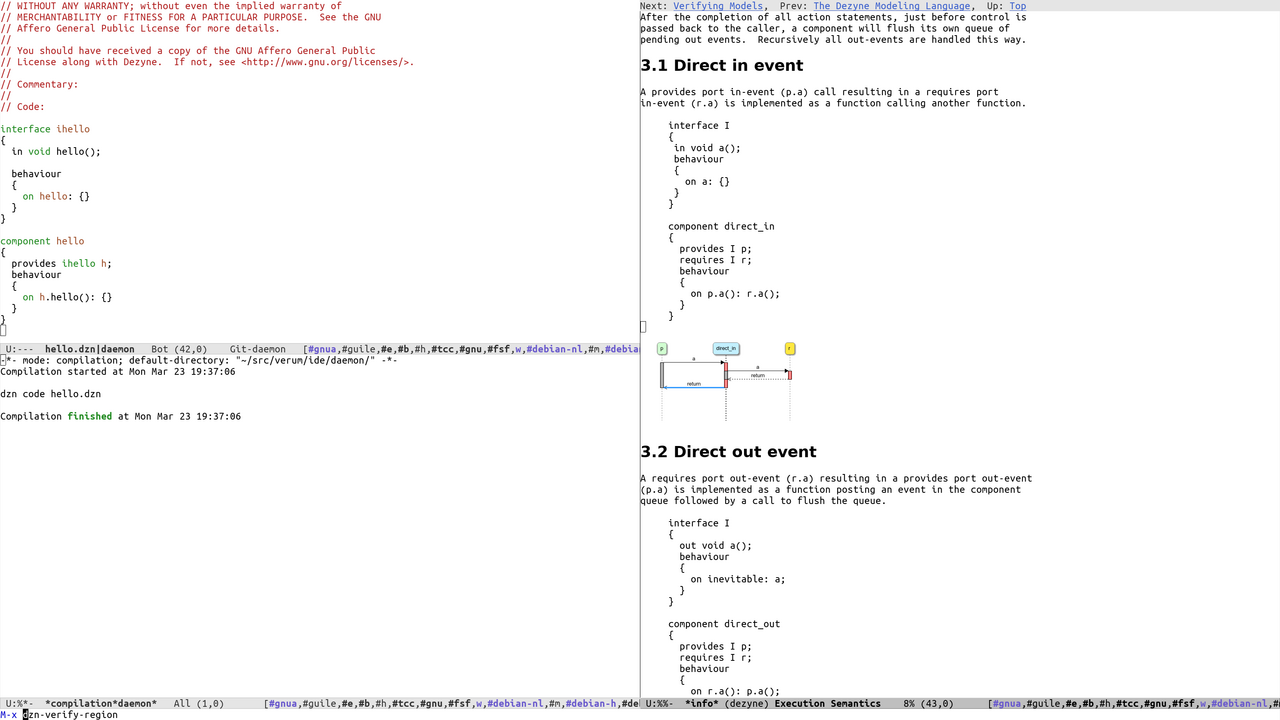
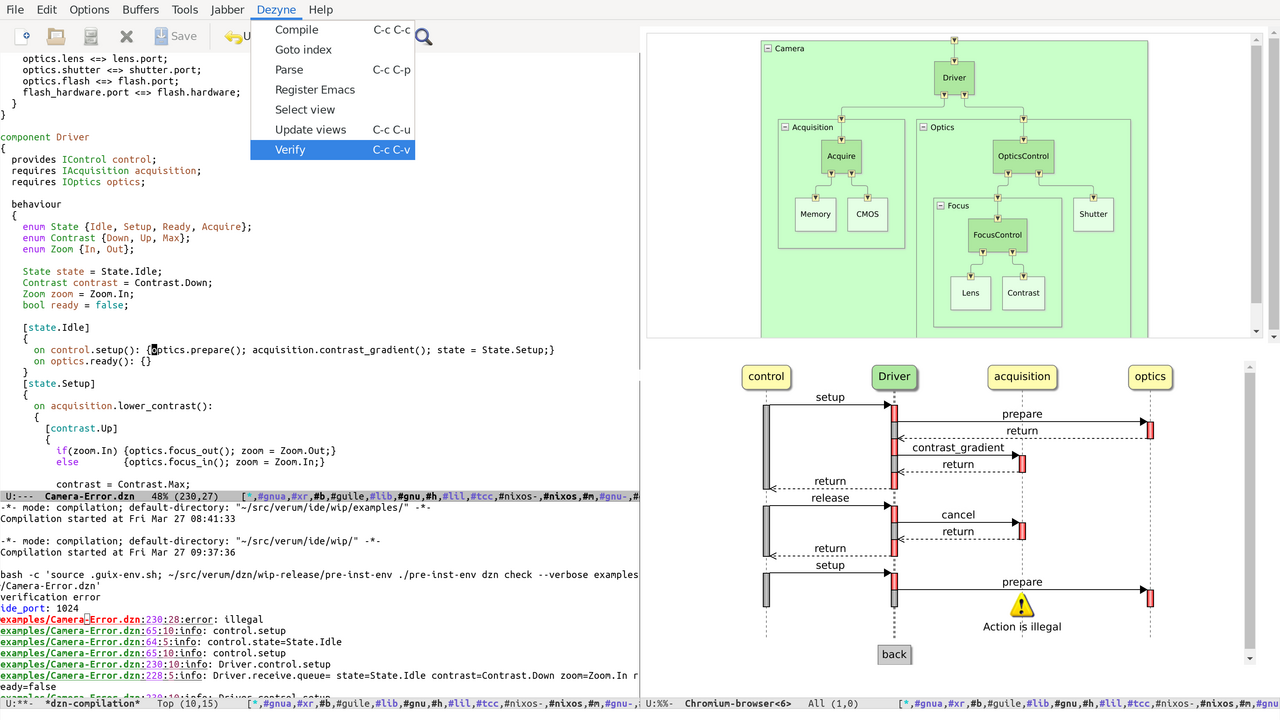
Emacs can be used in Full mode or External Browser mode, and with or without LSP.
./dzn-env emacs
(when (require 'dzn-mode nil t)
(push '("\\.dzn\\'" . dzn-mode) auto-mode-alist))
Next: Component Simulator, Previous: Example IDEs, Up: Using Verum-Dezyne [Contents][Index]
The View experience of Verum-Dezyne is achieved through a the dzn
daemon and three sub-commands ide verify, ide system,
and dzn simulate.
Usually, your Dezyze IDE takes care of running these commands; so if you are planning on using an IDE you can safely skip this section.
Next: Invoking ide daemon, Up: Verum-Dezyne View Commands [Contents][Index]
ideThe Verum-Dezyne IDE extends the set of dzn core command-line
with graphical ide view commands.
ide ide-option… [command]
The options can be among the following:
--debug-dEnable debug ouput. Careful, this can produce a lot of text!
--help-hDisplay help on invoking ide daemon, and then exit.
--skip-wfc-pUse plain peg parser, skip Well-formedness (See Well-formedness in Well-formedness) checking.
--verbose-vBe more verbose, show progress.
--version-VDisplay the current version of ide, and then exit.
Running ide without command shows a list of available ide
commands:
Usage: ide [OPTION]... COMMAND [COMMAND-ARGUMENT...] -d, --debug enable debug ouput -h, --help display this help -p, --skip-wfc use plain PEG, skip well-formedness checking -v, --verbose be more verbose, show progress -V, --version display version Commands: browse bye daemon hello info lsp simulate state system verify Use "ide COMMAND --help" for command-specific information.
Next: Invoking ide browse, Previous: Invoking ide, Up: Verum-Dezyne View Commands [Contents][Index]
ide daemonAll Dezyne View commands communicate with the Views and Editor through
the ide daemon. The daemon is started automagically when
issuing any ide-command, e.g. ide hello
(see Invoking ide hello), and it is stopped by running ide
bye (see Invoking ide bye).
When started automagically, the daemon writes its log file to
$XDG_CACHE_HOME/dzn/daemon.log. If the XDG_CACHE_HOME
environment variable is not defined, $HOME/.cache/dzn/daemon.log
is used instead.
ide ide-option… daemon option… FILE
The options can be among the following:
--debug-dEnable debug ouput. Careful, this can produce a lot of text!
--editor-port=EDITOR-PORT-i EDITOR-PORTListen to editor port EDITOR-PORT, the default is
3003.
--help-hDisplay help on invoking ide daemon, and then exit.
--http-port=HTTP-PORT-b HTTP-PORTStart web serever on http port HTTP-PORT, the default is
3000.
--ide-port=IDE-PORT-i IDE-PORTListen to ide command port IDE-PORT, the default is
3001.
--view-port=VIEW-PORT-b VIEW-PORTListen to browser view port VIEW-PORT, the default is
3002.
--verbose-vBe more verbose, show progress.
When overriding a port setting, the daemo saves this configuration to
$XDG_CONFIG_HOME/dzn/daemon.scm. If the XDG_CONFIG_HOME
environment variable is not defined, $HOME/.config/dzn/daemon.scm
is used instead.
Next: Invoking ide bye, Previous: Invoking ide daemon, Up: Verum-Dezyne View Commands [Contents][Index]
ide browseThe ide browse command opens a graphical browser view.
ide ide-option… browse option… view
The views must be the name of a view: system (the default)
state, trace or an URL.
Running
ide browse trace
opens the trace view.
The options can be among the following:
--help-hDisplay help on invoking ide browse, and then exit.
--import=dir-I dirAdd directory dir to import path.
Next: Invoking ide hello, Previous: Invoking ide browse, Up: Verum-Dezyne View Commands [Contents][Index]
ide byeThe ide bye command runs the dzn bye command. It
marks the end of a dezyne session and kills the Verum-Dezyne daemon.
The start of a dezyne session can be marked with ide hello
(see Invoking ide hello).
ide ide-option… bye option…
The options can be among the following:
--force-fKill the daemon without connecting or sending dzn bye.
--help-hDisplay help on invoking ide bye, and then exit.
Next: Invoking ide info, Previous: Invoking ide bye, Up: Verum-Dezyne View Commands [Contents][Index]
ide helloThe ide hello command runs the dzn hello command.
It marks the start of a dezyne session and starts the Verum-Dezyne
daemon. The end of a dezyne session can be marked with ide
bye (see Invoking ide bye).
ide ide-option… hello option…
The options can be among the following:
--force-fAssume the daemon.pid file is stale and forcibly start the daemon, writing a fresh daemon.pid file.
--help-hDisplay help on invoking ide hello, and then exit.
--verbose-vShow the editors and browsers connections with the daemon.
Next: Invoking ide lsp, Previous: Invoking ide hello, Up: Verum-Dezyne View Commands [Contents][Index]
ide infoThe ide info command is used to query the state of the daemon
(see Invoking ide daemon).
ide ide-option… info option…
The options can be among the following:
--help-hDisplay help on invoking ide info, and then exit.
--trail-tShow the current trail on standard output. This is the default.
--verbose-vShow the editors and browsers connections with the daemon.
Next: Invoking ide simulate, Previous: Invoking ide info, Up: Verum-Dezyne View Commands [Contents][Index]
ide lspThe ide lsp command runs a Dezyne Language Server Protocol
(LSP) server reading and writing json-rpc over stdio.
ide ide-option… lsp option…
Running
ide lsp
starts the Dezyne Language Protocol Server.
--help-hDisplay help on invoking ide lsp, and then exit.
--import=dir-I dirAdd directory dir to import path.
Next: Invoking ide state, Previous: Invoking ide lsp, Up: Verum-Dezyne View Commands [Contents][Index]
ide simulateThe ide simulate command runs the internal simulate
command.
ide ide-option… simulate option… FILE
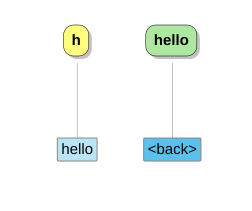
Running
ide simulate examples/hello.dzn
will have the trace.html view show
The options can be among the following:
--help-hDisplay help on invoking ide simulate, and then exit.
--import=dir-I dirAdd directory dir to import path.
--model=model-m modelStart simulation of model model.
--no-compliance-CDo not run the compliance check.
--no-deadlock-DDo not run the deadlock check at the end of the trail (EOT).
--no-interface-livelockDo not run the interface livelock check at the end of the trail (EOT).
--no-queue-full-QDo not run the external queue-full check at the end of the trail (EOT).
--no-refusals-RDo not run the compliance check for the failures model refusals check at the end of the trail (EOT).
--no-strict-SDo not use strict matching of trail.
--queue-size=size-q sizeUse component queue size size for simulation, the default is
3.
--queue-size-defer=sizeUse defer queue size size for simulation, the default is
2.
--queue-size-external=sizeUse external queue size size for simulation, the default is
1.
--strict-sUse strict matching of trail, i.e., the trail must contain all observable events.
--trail=trail-t trailStart simulation by feeding initial trail trail.
--trail-file=trail-file-T trail-fileStart simulation by feeding initial trail from trail-file.
Next: Invoking ide system, Previous: Invoking ide simulate, Up: Verum-Dezyne View Commands [Contents][Index]
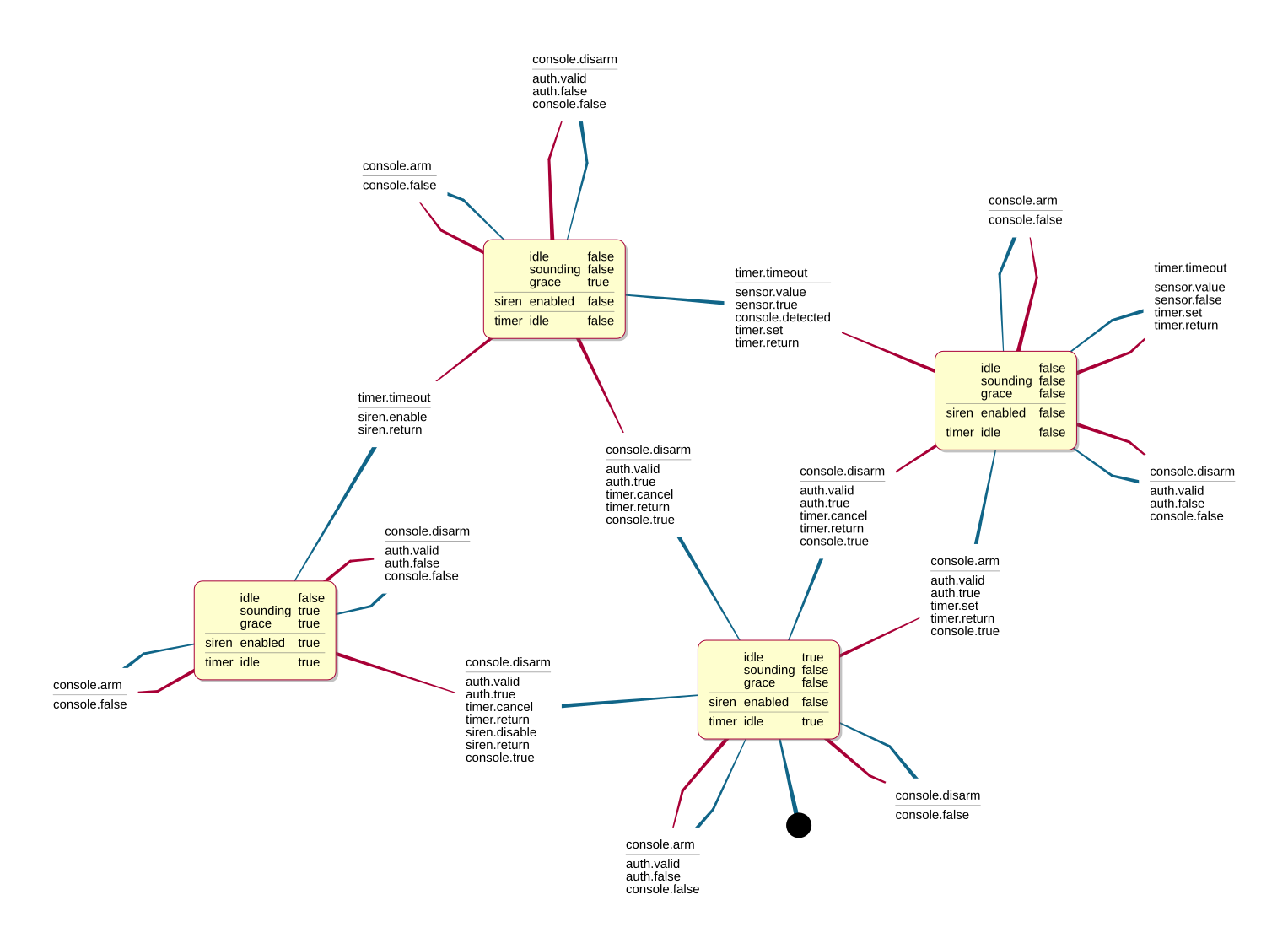
ide stateThe ide state command runs the dzn graph command
with the --backend=state. It produces graph data to the
ide daemon to provide a state vew can be viewed with a
browser.
ide ide-option… state option… FILE
Running
ide state examples/alarm.dzn
will have the state.html view show
The options can be among the following:
--help-hDisplay help on invoking ide state, and then exit.
--hide=hide-H hideGenerate a state diagram and hide hide from the transitions; one
of labels (hide everything) or actions.
--import=dir-I dirAdd directory dir to import path.
--model=model-m modelShow state diagram for model model.
--remove=vars-R varsGenerate a state diagram and remove variables from nodes remove;
one of ports or extended.
ports Hides the state of the component’s or system’s ports,
extended hides the interface’s or component’s extended state,
i.e., all but the main (first) state variable and implies ports.
Next: Invoking ide verify, Previous: Invoking ide state, Up: Verum-Dezyne View Commands [Contents][Index]
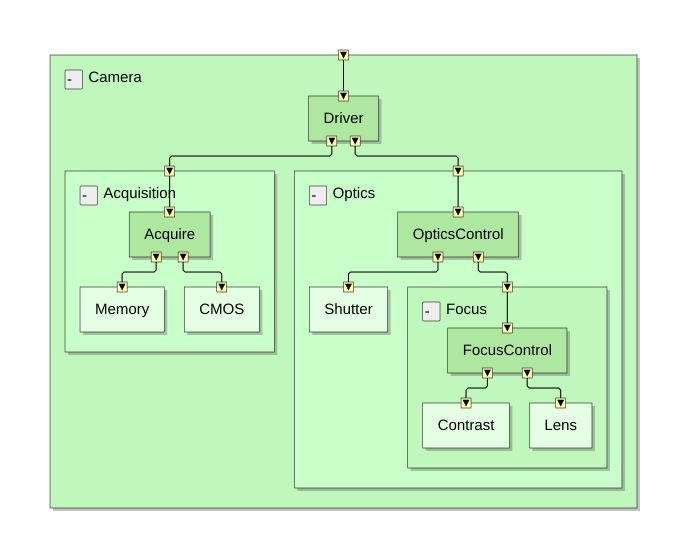
ide systemThe ide system command runs the dzn graph command
with the --backend=system. It produces a partial AST to the
ide daemon to provide a system vew can be viewed with a
browser. The well-formedness check
(See Well-formedness in Well-formedness) is skipped so that
incomplete systems can already be (partially) be displayed.
ide ide-option… system option… FILE
Running
ide system examples/Camera.dzn
will have the system.html view show
The options can be among the following:
--help-hDisplay help on invoking ide system, and then exit.
--import=dir-I dirAdd directory dir to import path.
Previous: Invoking ide system, Up: Verum-Dezyne View Commands [Contents][Index]
ide verifyThe ide verify command runs the dzn verify command.
If verification errors are found, the ide daemon provides
a sequence view that can be viewed with a browser.
ide ide-option… verify option… FILE
Running
ide verify examples/compliance_provides_bool.dzn
will have the trace.html view show
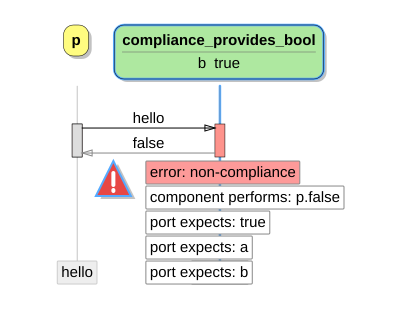
Note: The trace view, which is generated by the simulator, will only show compliance errors when the verificator found a
compliance error. This means that when the model has errors such asdeadlock,illegal,non-determinism,missing reply,second reply,queue full, orrange error, anycompliance erroris ignored.
The options can be among the following:
--help-hDisplay help on invoking ide verify, and then exit.
--import=dir-I dirAdd directory dir to import path.
--model=model-m modelLimit verification to model, and for behavioral component model, to its interfaces.
--no-constraint-CDo not use a constraining process.
Note: Verification cannot be applied to system components models; verifying a system model is a no-op.
--no-interfacesDo not verify a model’s interfaces.
--no-unreachable-UDisable the unreachable code check. For large models the unreachable code check may have a serious performance impact.
--queue-size=size-q sizeUse component queue size size for verification, the default is
3.
--queue-size-defer=sizeUse defer queue size size for verification, the default is
2.
--queue-size-external=sizeUse external queue size size for verification, the default is
1.
--verbose-vBe more verbose, show progress.
Previous: Verum-Dezyne View Commands, Up: Using Verum-Dezyne [Contents][Index]
Input for the component simulator is a trace of events of a single component and its ports; such a trace is either a witness of a verification error, or a hand-crafted use case description. The simulator interprets the trace, using the Dezyne semantics, and outputs a more detailed trace, where the state of the component and its interfaces is included. It also outputs a list of ’eligible’ events: events that are a valid extension of the input trace.
Next: Working with Legacy Code, Previous: Using Verum-Dezyne, Up: Top [Contents][Index]
| • System View | ||
| • Trace View | ||
| • State View |
Each View in Dezyne is interactive and can be used to explore the different aspects of the design. By left clicking on different diagram elements using the mouse, a suitable connected editor will locate and highlight the corresponding text in the Dezyne model.
Next: Trace View, Up: Dezyne Views [Contents][Index]
The system view shows a structural view of a system component and its sub components.
Next: State View, Previous: System View, Up: Dezyne Views [Contents][Index]
The Trace View visualizes a detailed trace resulting from the component simulator; it displays all events that are communicated, the eligible events and the state. The Trace View can be used to extend the trace by selecting one of the eligible events.
Previous: Trace View, Up: Dezyne Views [Contents][Index]
The State View visualizes the behavior of an interface, component or system as a state chart.
Next: Index, Previous: Dezyne Views, Up: Top [Contents][Index]
XXX: TODO
| • ASD Converter |
The semantics of ASD and Dezyne largely overlap. This enables automatic conversion from ASD models to Dezyne models. Work has to be done for multi-threaded ASD models. Also the readability of the generated Dezyne models needs improvement.
Next: GNU Free Documentation License, Previous: Working with Legacy Code, Up: Top [Contents][Index]
| Jump to: | A C D E G I S T |
|---|
| Jump to: | A C D E G I S T |
|---|
Copyright © 2000, 2001, 2002, 2007, 2008 Free Software Foundation, Inc.
http://fsf.org/

Everyone is permitted to copy and distribute verbatim copies
of this license document, but changing it is not allowed.
The purpose of this License is to make a manual, textbook, or other functional and useful document free in the sense of freedom: to assure everyone the effective freedom to copy and redistribute it, with or without modifying it, either commercially or noncommercially. Secondarily, this License preserves for the author and publisher a way to get credit for their work, while not being considered responsible for modifications made by others.
This License is a kind of “copyleft”, which means that derivative works of the document must themselves be free in the same sense. It complements the GNU General Public License, which is a copyleft license designed for free software.
We have designed this License in order to use it for manuals for free software, because free software needs free documentation: a free program should come with manuals providing the same freedoms that the software does. But this License is not limited to software manuals; it can be used for any textual work, regardless of subject matter or whether it is published as a printed book. We recommend this License principally for works whose purpose is instruction or reference.
This License applies to any manual or other work, in any medium, that contains a notice placed by the copyright holder saying it can be distributed under the terms of this License. Such a notice grants a world-wide, royalty-free license, unlimited in duration, to use that work under the conditions stated herein. The “Document”, below, refers to any such manual or work. Any member of the public is a licensee, and is addressed as “you”. You accept the license if you copy, modify or distribute the work in a way requiring permission under copyright law.
A “Modified Version” of the Document means any work containing the Document or a portion of it, either copied verbatim, or with modifications and/or translated into another language.
A “Secondary Section” is a named appendix or a front-matter section of the Document that deals exclusively with the relationship of the publishers or authors of the Document to the Document’s overall subject (or to related matters) and contains nothing that could fall directly within that overall subject. (Thus, if the Document is in part a textbook of mathematics, a Secondary Section may not explain any mathematics.) The relationship could be a matter of historical connection with the subject or with related matters, or of legal, commercial, philosophical, ethical or political position regarding them.
The “Invariant Sections” are certain Secondary Sections whose titles are designated, as being those of Invariant Sections, in the notice that says that the Document is released under this License. If a section does not fit the above definition of Secondary then it is not allowed to be designated as Invariant. The Document may contain zero Invariant Sections. If the Document does not identify any Invariant Sections then there are none.
The “Cover Texts” are certain short passages of text that are listed, as Front-Cover Texts or Back-Cover Texts, in the notice that says that the Document is released under this License. A Front-Cover Text may be at most 5 words, and a Back-Cover Text may be at most 25 words.
A “Transparent” copy of the Document means a machine-readable copy, represented in a format whose specification is available to the general public, that is suitable for revising the document straightforwardly with generic text editors or (for images composed of pixels) generic paint programs or (for drawings) some widely available drawing editor, and that is suitable for input to text formatters or for automatic translation to a variety of formats suitable for input to text formatters. A copy made in an otherwise Transparent file format whose markup, or absence of markup, has been arranged to thwart or discourage subsequent modification by readers is not Transparent. An image format is not Transparent if used for any substantial amount of text. A copy that is not “Transparent” is called “Opaque”.
Examples of suitable formats for Transparent copies include plain ASCII without markup, Texinfo input format, LaTeX input format, SGML or XML using a publicly available DTD, and standard-conforming simple HTML, PostScript or PDF designed for human modification. Examples of transparent image formats include PNG, XCF and JPG. Opaque formats include proprietary formats that can be read and edited only by proprietary word processors, SGML or XML for which the DTD and/or processing tools are not generally available, and the machine-generated HTML, PostScript or PDF produced by some word processors for output purposes only.
The “Title Page” means, for a printed book, the title page itself, plus such following pages as are needed to hold, legibly, the material this License requires to appear in the title page. For works in formats which do not have any title page as such, “Title Page” means the text near the most prominent appearance of the work’s title, preceding the beginning of the body of the text.
The “publisher” means any person or entity that distributes copies of the Document to the public.
A section “Entitled XYZ” means a named subunit of the Document whose title either is precisely XYZ or contains XYZ in parentheses following text that translates XYZ in another language. (Here XYZ stands for a specific section name mentioned below, such as “Acknowledgements”, “Dedications”, “Endorsements”, or “History”.) To “Preserve the Title” of such a section when you modify the Document means that it remains a section “Entitled XYZ” according to this definition.
The Document may include Warranty Disclaimers next to the notice which states that this License applies to the Document. These Warranty Disclaimers are considered to be included by reference in this License, but only as regards disclaiming warranties: any other implication that these Warranty Disclaimers may have is void and has no effect on the meaning of this License.
You may copy and distribute the Document in any medium, either commercially or noncommercially, provided that this License, the copyright notices, and the license notice saying this License applies to the Document are reproduced in all copies, and that you add no other conditions whatsoever to those of this License. You may not use technical measures to obstruct or control the reading or further copying of the copies you make or distribute. However, you may accept compensation in exchange for copies. If you distribute a large enough number of copies you must also follow the conditions in section 3.
You may also lend copies, under the same conditions stated above, and you may publicly display copies.
If you publish printed copies (or copies in media that commonly have printed covers) of the Document, numbering more than 100, and the Document’s license notice requires Cover Texts, you must enclose the copies in covers that carry, clearly and legibly, all these Cover Texts: Front-Cover Texts on the front cover, and Back-Cover Texts on the back cover. Both covers must also clearly and legibly identify you as the publisher of these copies. The front cover must present the full title with all words of the title equally prominent and visible. You may add other material on the covers in addition. Copying with changes limited to the covers, as long as they preserve the title of the Document and satisfy these conditions, can be treated as verbatim copying in other respects.
If the required texts for either cover are too voluminous to fit legibly, you should put the first ones listed (as many as fit reasonably) on the actual cover, and continue the rest onto adjacent pages.
If you publish or distribute Opaque copies of the Document numbering more than 100, you must either include a machine-readable Transparent copy along with each Opaque copy, or state in or with each Opaque copy a computer-network location from which the general network-using public has access to download using public-standard network protocols a complete Transparent copy of the Document, free of added material. If you use the latter option, you must take reasonably prudent steps, when you begin distribution of Opaque copies in quantity, to ensure that this Transparent copy will remain thus accessible at the stated location until at least one year after the last time you distribute an Opaque copy (directly or through your agents or retailers) of that edition to the public.
It is requested, but not required, that you contact the authors of the Document well before redistributing any large number of copies, to give them a chance to provide you with an updated version of the Document.
You may copy and distribute a Modified Version of the Document under the conditions of sections 2 and 3 above, provided that you release the Modified Version under precisely this License, with the Modified Version filling the role of the Document, thus licensing distribution and modification of the Modified Version to whoever possesses a copy of it. In addition, you must do these things in the Modified Version:
If the Modified Version includes new front-matter sections or appendices that qualify as Secondary Sections and contain no material copied from the Document, you may at your option designate some or all of these sections as invariant. To do this, add their titles to the list of Invariant Sections in the Modified Version’s license notice. These titles must be distinct from any other section titles.
You may add a section Entitled “Endorsements”, provided it contains nothing but endorsements of your Modified Version by various parties—for example, statements of peer review or that the text has been approved by an organization as the authoritative definition of a standard.
You may add a passage of up to five words as a Front-Cover Text, and a passage of up to 25 words as a Back-Cover Text, to the end of the list of Cover Texts in the Modified Version. Only one passage of Front-Cover Text and one of Back-Cover Text may be added by (or through arrangements made by) any one entity. If the Document already includes a cover text for the same cover, previously added by you or by arrangement made by the same entity you are acting on behalf of, you may not add another; but you may replace the old one, on explicit permission from the previous publisher that added the old one.
The author(s) and publisher(s) of the Document do not by this License give permission to use their names for publicity for or to assert or imply endorsement of any Modified Version.
You may combine the Document with other documents released under this License, under the terms defined in section 4 above for modified versions, provided that you include in the combination all of the Invariant Sections of all of the original documents, unmodified, and list them all as Invariant Sections of your combined work in its license notice, and that you preserve all their Warranty Disclaimers.
The combined work need only contain one copy of this License, and multiple identical Invariant Sections may be replaced with a single copy. If there are multiple Invariant Sections with the same name but different contents, make the title of each such section unique by adding at the end of it, in parentheses, the name of the original author or publisher of that section if known, or else a unique number. Make the same adjustment to the section titles in the list of Invariant Sections in the license notice of the combined work.
In the combination, you must combine any sections Entitled “History” in the various original documents, forming one section Entitled “History”; likewise combine any sections Entitled “Acknowledgements”, and any sections Entitled “Dedications”. You must delete all sections Entitled “Endorsements.”
You may make a collection consisting of the Document and other documents released under this License, and replace the individual copies of this License in the various documents with a single copy that is included in the collection, provided that you follow the rules of this License for verbatim copying of each of the documents in all other respects.
You may extract a single document from such a collection, and distribute it individually under this License, provided you insert a copy of this License into the extracted document, and follow this License in all other respects regarding verbatim copying of that document.
A compilation of the Document or its derivatives with other separate and independent documents or works, in or on a volume of a storage or distribution medium, is called an “aggregate” if the copyright resulting from the compilation is not used to limit the legal rights of the compilation’s users beyond what the individual works permit. When the Document is included in an aggregate, this License does not apply to the other works in the aggregate which are not themselves derivative works of the Document.
If the Cover Text requirement of section 3 is applicable to these copies of the Document, then if the Document is less than one half of the entire aggregate, the Document’s Cover Texts may be placed on covers that bracket the Document within the aggregate, or the electronic equivalent of covers if the Document is in electronic form. Otherwise they must appear on printed covers that bracket the whole aggregate.
Translation is considered a kind of modification, so you may distribute translations of the Document under the terms of section 4. Replacing Invariant Sections with translations requires special permission from their copyright holders, but you may include translations of some or all Invariant Sections in addition to the original versions of these Invariant Sections. You may include a translation of this License, and all the license notices in the Document, and any Warranty Disclaimers, provided that you also include the original English version of this License and the original versions of those notices and disclaimers. In case of a disagreement between the translation and the original version of this License or a notice or disclaimer, the original version will prevail.
If a section in the Document is Entitled “Acknowledgements”, “Dedications”, or “History”, the requirement (section 4) to Preserve its Title (section 1) will typically require changing the actual title.
You may not copy, modify, sublicense, or distribute the Document except as expressly provided under this License. Any attempt otherwise to copy, modify, sublicense, or distribute it is void, and will automatically terminate your rights under this License.
However, if you cease all violation of this License, then your license from a particular copyright holder is reinstated (a) provisionally, unless and until the copyright holder explicitly and finally terminates your license, and (b) permanently, if the copyright holder fails to notify you of the violation by some reasonable means prior to 60 days after the cessation.
Moreover, your license from a particular copyright holder is reinstated permanently if the copyright holder notifies you of the violation by some reasonable means, this is the first time you have received notice of violation of this License (for any work) from that copyright holder, and you cure the violation prior to 30 days after your receipt of the notice.
Termination of your rights under this section does not terminate the licenses of parties who have received copies or rights from you under this License. If your rights have been terminated and not permanently reinstated, receipt of a copy of some or all of the same material does not give you any rights to use it.
The Free Software Foundation may publish new, revised versions of the GNU Free Documentation License from time to time. Such new versions will be similar in spirit to the present version, but may differ in detail to address new problems or concerns. See http://www.gnu.org/copyleft/.
Each version of the License is given a distinguishing version number. If the Document specifies that a particular numbered version of this License “or any later version” applies to it, you have the option of following the terms and conditions either of that specified version or of any later version that has been published (not as a draft) by the Free Software Foundation. If the Document does not specify a version number of this License, you may choose any version ever published (not as a draft) by the Free Software Foundation. If the Document specifies that a proxy can decide which future versions of this License can be used, that proxy’s public statement of acceptance of a version permanently authorizes you to choose that version for the Document.
“Massive Multiauthor Collaboration Site” (or “MMC Site”) means any World Wide Web server that publishes copyrightable works and also provides prominent facilities for anybody to edit those works. A public wiki that anybody can edit is an example of such a server. A “Massive Multiauthor Collaboration” (or “MMC”) contained in the site means any set of copyrightable works thus published on the MMC site.
“CC-BY-SA” means the Creative Commons Attribution-Share Alike 3.0 license published by Creative Commons Corporation, a not-for-profit corporation with a principal place of business in San Francisco, California, as well as future copyleft versions of that license published by that same organization.
“Incorporate” means to publish or republish a Document, in whole or in part, as part of another Document.
An MMC is “eligible for relicensing” if it is licensed under this License, and if all works that were first published under this License somewhere other than this MMC, and subsequently incorporated in whole or in part into the MMC, (1) had no cover texts or invariant sections, and (2) were thus incorporated prior to November 1, 2008.
The operator of an MMC Site may republish an MMC contained in the site under CC-BY-SA on the same site at any time before August 1, 2009, provided the MMC is eligible for relicensing.
To use this License in a document you have written, include a copy of the License in the document and put the following copyright and license notices just after the title page:
  Copyright (C)  year  your name.
  Permission is granted to copy, distribute and/or modify this document
  under the terms of the GNU Free Documentation License, Version 1.3
  or any later version published by the Free Software Foundation;
  with no Invariant Sections, no Front-Cover Texts, and no Back-Cover
  Texts.  A copy of the license is included in the section entitled ``GNU
  Free Documentation License''.
If you have Invariant Sections, Front-Cover Texts and Back-Cover Texts, replace the “with…Texts.” line with this:
    with the Invariant Sections being list their titles, with
    the Front-Cover Texts being list, and with the Back-Cover Texts
    being list.
If you have Invariant Sections without Cover Texts, or some other combination of the three, merge those two alternatives to suit the situation.
If your document contains nontrivial examples of program code, we recommend releasing these examples in parallel under your choice of free software license, such as the GNU General Public License, to permit their use in free software.
dzn-env can be used as a prefix for
using programs from your operating system, such as info,
man, or emacs; so that they may find and use the
documentation and extensions that are provided in the binary release.